Choose your access
Match Desktop, Browser or Mobile to your routine and device.
XENDORE / YOUR CONNECTED WORKSPACE
More room to analyse. More ways to stay connected.
Find the Platform that fits the way you work.
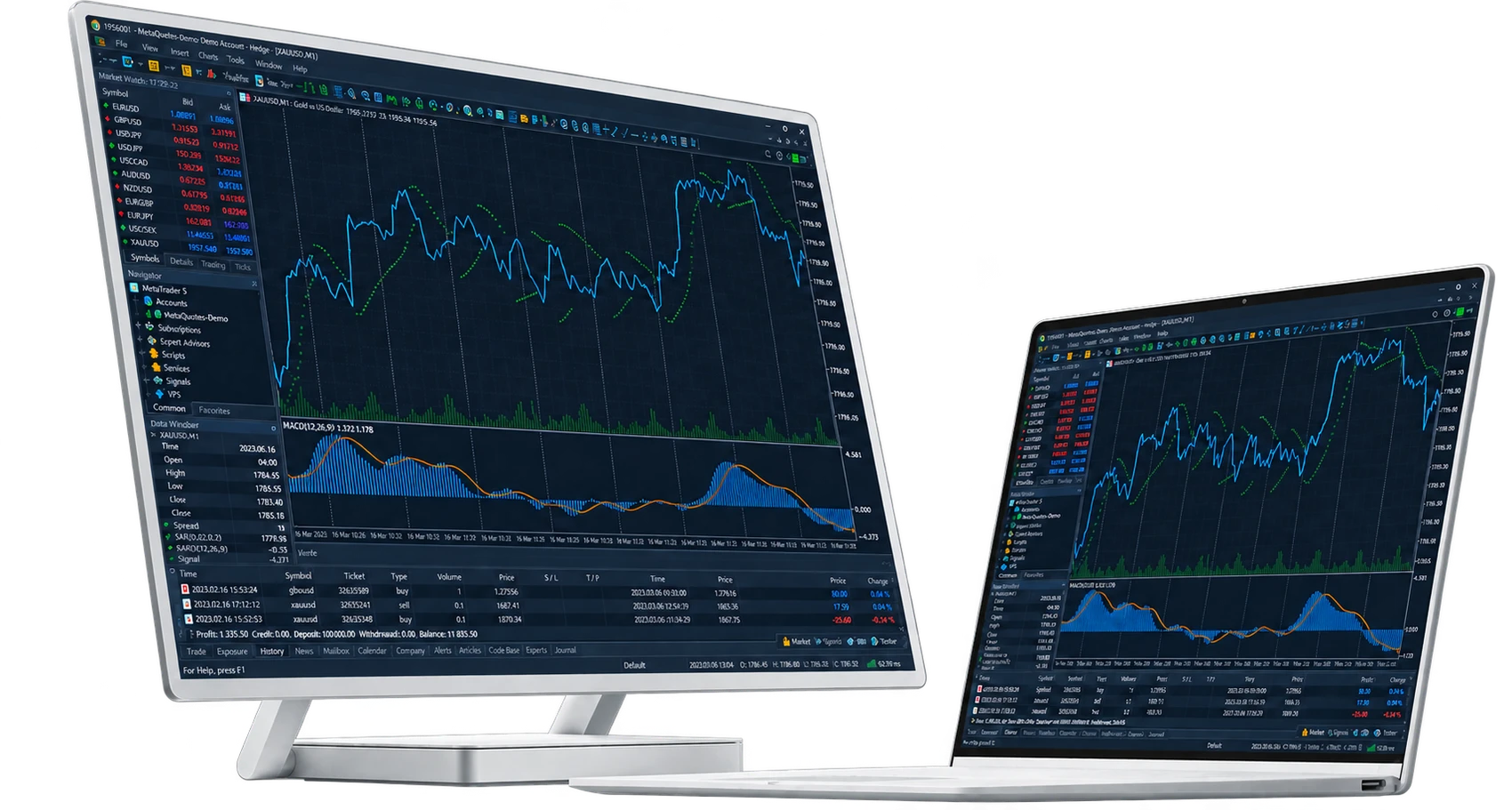
DESKTOP / ROOM TO EXPLORE
Bring Charts, Market information and Order management together in MetaTrader 5. Build a layout around the way you research, then connect using the Account and server details provided through Xendore.
Explore timeframes, analytical Tools and custom Chart layouts.
Check symbol, volume, direction and Order conditions before sending.
Desktop MT5 supports automated strategies and testing; understand the assumptions and risks.
Confirm the correct server, available Instruments and position-accounting mode.
Review open positions, Account history and the costs associated with your activity.
Official MetaQuotes destination. Confirm your Xendore connection details separately.
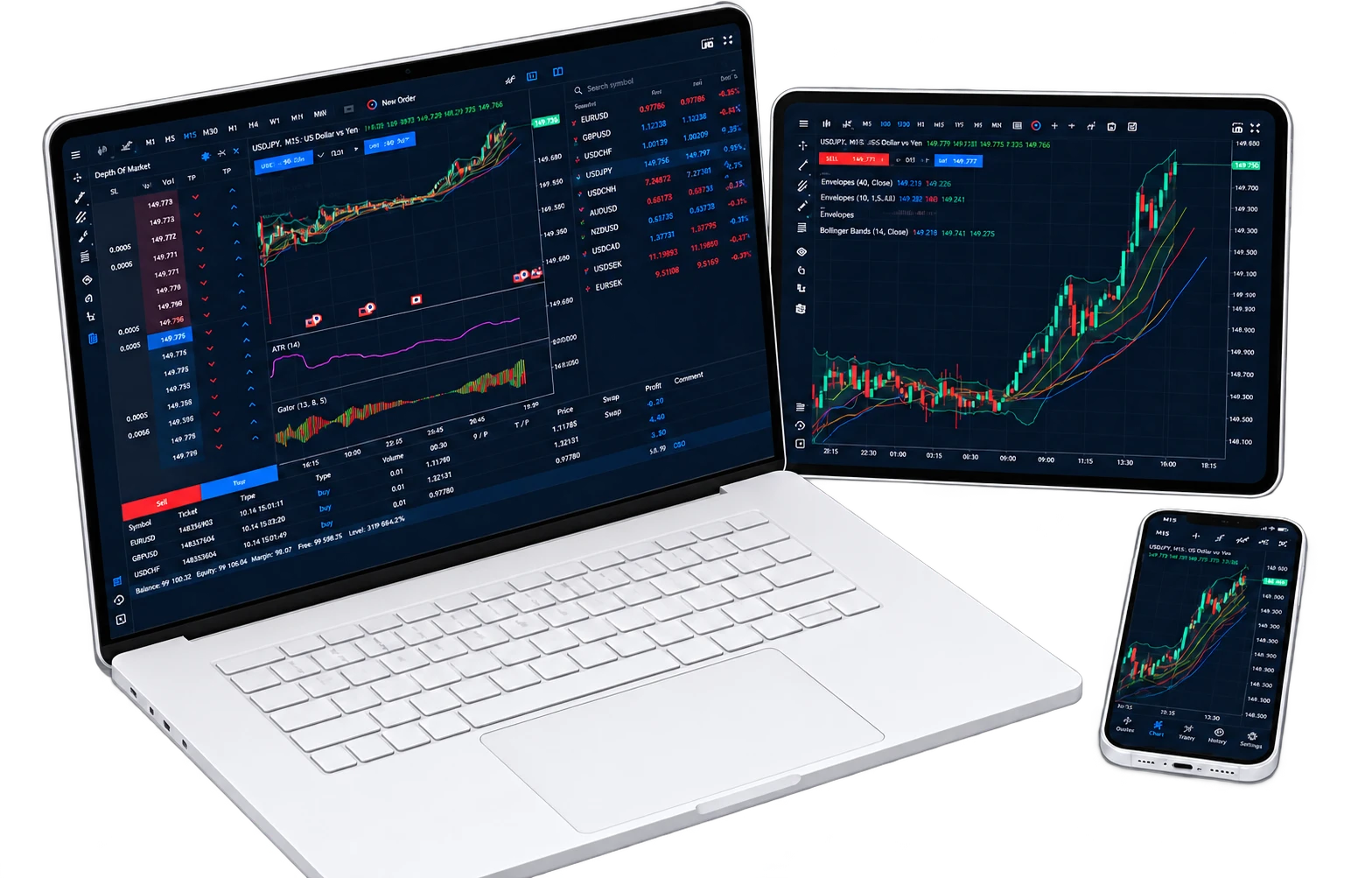
BROWSER / A SIMPLER WAY IN
Explore a Trading Workspace through a compatible Browser. Review Charts, available Instruments and Order Controls without assuming every Desktop Feature is available in the web version.
Browser access removes the need for a separate Desktop terminal installation.
Organise the supported timeframes and Tools around your research question.
Review the Account, Instrument and volume before confirming an instruction.
Use the verified Account-specific destination and keep your credentials private.
Check Browser compatibility and Feature support rather than assuming Desktop parity.
Confirm the official WebTrader address for your Account before signing in.
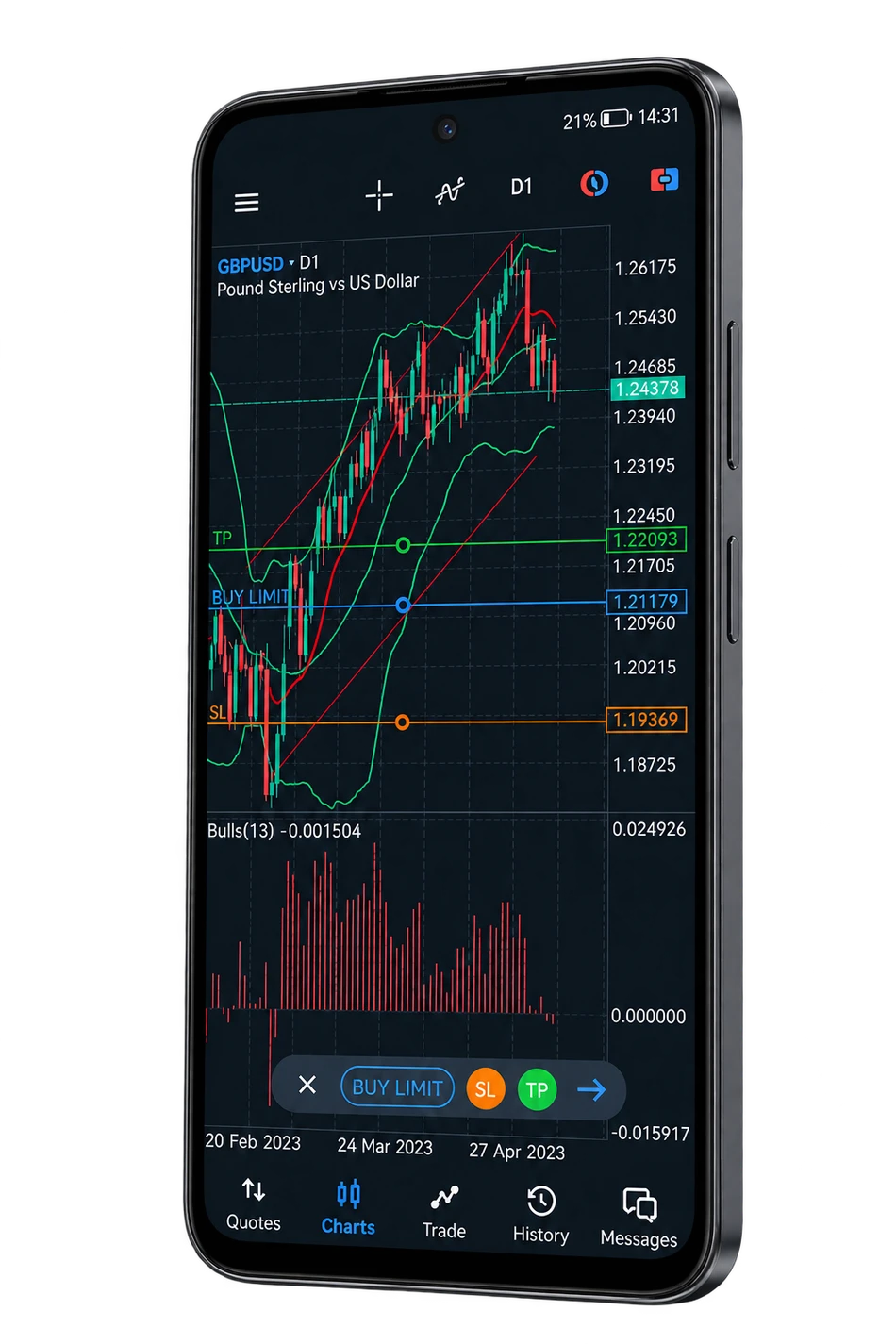
MOBILE / KEEP YOUR WORKSPACE CLOSE
Follow your Workspace on a compatible phone with supported Mobile access. Explore Charts, review Account information and learn the smaller-screen Order Controls before you trade.
Explore price Charts and supported analysis Tools on your device.
Review available position and Account information in the Mobile version.
Take time to check direction, volume and instructions on a smaller screen.
Use the official publisher’s download route and confirm device compatibility.
Protect the device and never disclose passwords or one-time verification codes.
THE DETAILS, SIDE BY SIDE
A useful comparison starts with the task you need to complete.
| Your workflow | MT5 Desktop | WebTrader | Mobile |
|---|---|---|---|
| Chart analysis | Desktop charting and analytical Tools | Browser-supported charting Tools | Mobile Charts and supported studies |
| Expert Advisors & testing | Desktop MT5 environment | Desktop EAs do not run here | Desktop EAs do not run here |
| Order management | Review available Account and symbol Controls | Review Browser Order Controls | Review Mobile Order Controls |
| Getting started | Install and confirm server details | Confirm the Account-specific access URL | Verify app publisher and device support |
| Best suited to | A dedicated analysis Workspace | Access through a compatible Browser | A compact view away from your desk |
Features and access depend on the Platform version, Instrument and Account. Confirm the details before choosing your setup.
A CLEAR START
Match Desktop, Browser or Mobile to your routine and device.
Use official destinations and the correct Account and server details.
Read the symbol details and review an Order ticket before a live decision.
Platform questions, answered
Start with how you work: Desktop for a dedicated analysis layout, Browser for compatible web access, or Mobile for a smaller-screen workflow. Confirm the functions and Account access available to you.
Use the Account information supplied through the official Xendore opening process. If a server or connection detail is unclear, verify it through an established support route.
Desktop MT5 Expert Advisors do not run inside the Browser or Mobile application. Review the Desktop environment and any hosting arrangements separately.
The device visuals illustrate a Trading Workspace. The interface, available Instruments and functions depend on your actual Platform version and Account.
Explore the practice options supported for your Account and chosen Platform. Demo pricing, Liquidity and execution can differ from live conditions.
Use the official publisher or a verified destination provided through your Account process. Confirm compatibility and never Share passwords or one-time codes.
YOUR PERSPECTIVE. YOUR NEXT CHAPTER.
Bring your Market interests, Account needs and preferred Tools together.
Find your starting point with Xendore.